Run AI Locally on Your Laptop: Your First Personal AI Provider
A laptop answers a question while completely offline. Then, without changing anything, it answers the exact same question for a second app on the same machine. That second part turns a laptop you already use into a small, personal AI provider that other apps and scripts can call.
This is about running a downloaded model, not training one. If you have not checked whether your laptop has enough RAM or VRAM for this, read how much RAM your laptop needs for local AI first. If you already know your machine qualifies, keep going.
The Four Layers Behind Every Local AI Setup
A local AI setup breaks down into four layers, though the fourth is optional, and knowing which is which makes each step below easier to follow.
Model weights are the file you download, for example a 3.4GB quantized version of a small model. That figure is a disk download, not a promise about how much RAM the model needs once it is running.
The inference engine is the program that loads those weights and answers requests, in this case Ollama running its own local HTTP API. This is the layer that turns a laptop into a provider for other apps.
The front end is whatever sends the request: Ollama's own built-in chat, a short script, or a separate app. It decides whether a prompt stays on the laptop or gets sent somewhere else.
An optional document index lets a chat model search your own files, using a separate embedding model and its own storage. It is not built automatically, and it is not covered here.
In short: an app or script calls 127.0.0.1:11434, which is Ollama, which loads the model you downloaded. Deleting a downloaded model is not the same as deleting a front end's saved chat history: the two live in different places.
Before You Install: Does Your Laptop Look Like One of These?
Before installing anything, take two minutes to write down what you are working with: how much RAM your laptop has, its operating system and processor, any dedicated graphics memory (VRAM), and how much free SSD space you have. For the full reasoning on how much RAM and VRAM local AI needs, see how much RAM your laptop needs for local AI.
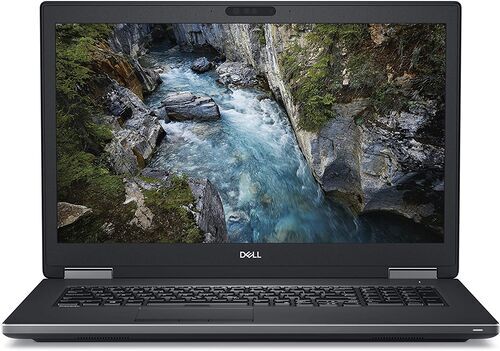
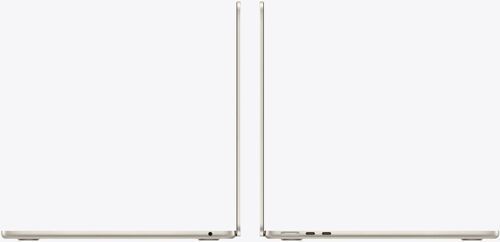
Both machines below are real, current laptops on refurbed, both refurbished: professionally tested, cleaned and reconditioned, and covered by a 12-month warranty. One is Apple's entry Apple Silicon tier, the other a Windows machine with its own dedicated graphics memory. Either is enough to follow every step below.
Two Refurbished Laptops, Two Tiers

Install Ollama on macOS, Windows, or Linux
Start with Ollama's official app for macOS or Windows, or its Linux install instructions. Open Ollama once it is installed, and on Linux, run ollama serve if nothing is already listening.
The current app offers both a local path and cloud options. Choose a downloaded, local model tag: local inference needs no sign-in at all.
To follow along, pull one exact model: qwen3.5:4b-q4_K_M, a 3.4GB download. Naming the exact tag matters: a generic "latest" label can silently point at a much larger model than the one you tested. A 3.4GB download is a disk size, not a RAM requirement, so it does not tell you how much memory the model needs once it is answering requests.
Pull Your First Model and Say Hello
Two commands get you talking to a model for the first time:
ollama pull qwen3.5:4b-q4_K_M
ollama run qwen3.5:4b-q4_K_M
The first downloads the model. The second opens an interactive chat with it. Give it one real, small task instead of a generic greeting, for example: "Turn these three meeting notes into an action list. Do not invent dates."
When you are done, type /bye to leave the chat.
Call the API: Your Laptop Is Now Running AI Locally
Chatting in a terminal is the front end talking to the engine. The next step is calling that same engine directly, the way another app would.
On macOS or Linux:
curl http://localhost:11434/api/chat -H 'Content-Type: application/json' -d '{"model":"qwen3.5:4b-q4_K_M","messages":[{"role":"user","content":"In one sentence, define local inference."}],"stream":false,"options":{"num_ctx":4096}}'
On Windows, in PowerShell:
Invoke-RestMethod -Uri 'http://localhost:11434/api/chat' -Method Post -ContentType 'application/json' -Body '{"model":"qwen3.5:4b-q4_K_M","messages":[{"role":"user","content":"In one sentence, define local inference."}],"stream":false,"options":{"num_ctx":4096}}'
Look for message.content in the response. Setting stream to false asks for one complete response instead of a stream of pieces, and num_ctx: 4096 keeps this first test modest next to a model's much larger advertised maximum.
What the Response Tells You
The response carries more than just the answer. Alongside message.content, Ollama returns timing fields worth reading: load_duration, prompt_eval_count, prompt_eval_duration, eval_count, and eval_duration.
Together, these separate two different things that a single "tokens per second" number blends together: the time spent loading the model into memory, and the time spent generating your answer. The first request after starting Ollama is usually the slowest, since it pays a loading cost that a request made soon after usually skips, at least until the model unloads again.
Exact numbers depend entirely on your own machine, so none are quoted here as typical. Compare these fields across two runs on the same laptop instead of trusting one lone speed claim.
Check What Is Running: ps, ls, and Idle Unloading
Three commands cover the basics: two to check on things, one to clean up.
ollama ps shows what is currently loaded and where it is running: a processor column reads 100% GPU, 100% CPU, or a split between the two.
ollama ls lists every model you have downloaded.
ollama rm qwen3.5:4b-q4_K_M removes a download you no longer need.
By default, Ollama unloads a model after five minutes of inactivity. If ollama ps shows nothing loaded, send one more request first rather than assuming something is broken.
Connect a Second App With the OpenAI-Compatible Local API
This is the moment your laptop becomes a provider for a second app, not just for itself: pointing that app at the same laptop instead of at a cloud service.
Most apps that support a custom OpenAI-compatible endpoint ask for three things: a base URL, a model name, and an API key. Use http://localhost:11434/v1/ as the base URL and qwen3.5:4b-q4_K_M as the model name.
The API key field is where it gets confusing. Some client apps or SDKs refuse to leave it blank, so Ollama's own documentation offers the placeholder api_key='ollama' for exactly that case: a non-empty string the local server never checks. That string does not authenticate anything: it is a placeholder for a form field, not a password.
Compatibility also covers only a subset of each API. Before assuming a feature works, such as image input or tool calling, test that specific feature with your specific app rather than assuming everything transfers.
Prove It: Go Offline and Ask Again
Everything so far could, in theory, still be quietly calling out to the internet. Here is how to rule that out.
Once the model has finished downloading, turn off your laptop's Wi-Fi or unplug its network cable, then repeat the same request from earlier, either in the chat or through the API. A real answer with no internet connection at all confirms the answer isn't coming from the internet.
A few things do not count as proof: a response that only works while you are online, anything coming from https://ollama.com rather than localhost, and a cloud model tag rather than a downloaded one. Ollama treats a local request as staying on your machine; its separate cloud models take a different, hosted path entirely.
Keep It Private: Guardrails for Your Offline AI Assistant Setup
None of this is private by accident, so it is worth knowing what is protecting you, and what is not.
By default, Ollama only listens on 127.0.0.1:11434, your own laptop and nothing else. Leave it that way. Do not set OLLAMA_HOST=0.0.0.0 and do not forward port 11434 to the public internet: the placeholder API key from the previous section does not check anything, so an exposed port is an open door, not a locked one.
If you want Ollama's own cloud features switched off entirely, that is optional, not required, since a downloaded local tag is already a local choice. Add {"disable_ollama_cloud": true} to ~/.ollama/server.json, or set OLLAMA_NO_CLOUD=1, then restart Ollama for either to take effect.
Reaching this setup from another room or device is a separate, more advanced topic on its own, involving a private network and an authenticated proxy in front of it. It is not covered here, and exposing the port directly is not the way to do it.
If Something Goes Wrong
A short list of the most common snags, and where to look first.
Connection refused. Make sure the Ollama app or ollama serve is running, then try again.
The first answer is slow, later ones are faster. That is model loading time, not generation speed. Check the response fields from earlier to see the difference.
Everything feels much slower than expected. Run ollama ps: it may show a CPU-only or split load. Check your GPU and driver support for your specific operating system.
Memory pressure or crashes. Move to a smaller tag, lower num_ctx, and close other memory-heavy apps before trying again.
Disk filling up. Run ollama ls to see what is downloaded, then ollama rm anything you are not using.
If this path does not fit, for example you want a graphical model browser or finer CPU and GPU control, LM Studio and llama.cpp are worth a look instead: a reason to switch engines, not a reason to run two setups side by side.
Frequently Asked Questions About Running AI Locally on Your Laptop
Do I need the internet after setup? No. Once a model has finished downloading, chatting with it and calling its API both work completely offline.
Does the placeholder API key protect my endpoint? No. Ollama's local server accepts any non-empty value and checks none of them, so the key some apps ask for is not a security measure.
Is my prompt staying on my laptop? Yes, for a downloaded local model tag. Ollama also offers separate cloud models, which take a different, hosted path, so the distinction is about which tag you choose, not a hidden default.
Do I need a dedicated graphics card? No. A CPU-only laptop can run a small model, typically more slowly. ollama ps shows you exactly how a given request was handled.
What if I want a bigger or different model? Swap the tag in the same ollama pull and ollama run commands, but check your RAM and VRAM first. See how much RAM your laptop needs for local AI for the full reasoning.
Will this remember my documents from now on? No. A chat model does not gain permanent memory of a folder by itself. Searching your own files needs a separate document index, an optional setup not covered here.
Your Turn: Put Your Personal AI Provider to Work
Pick one real task and run it through both clients you now have: the built-in chat, and the second app you just connected. A few realistic options: summarise a personal note, sort a batch of files into labelled groups, or get a plain-language explanation of a short code snippet.
Whichever you pick, write down the exact model tag, the engine version, the context setting, the URL, and the task itself. That is what makes the result reproducible later, for you or for anyone else trying the same thing.
If your own laptop turned out to be short on RAM or VRAM for this, upgrading to something with more headroom is worth considering. A follow-up on building a small toolkit of models, one for chat, one for code, one for search, is coming next in this series.

Sign up for our newsletter for the first time and save €15!
Never miss an offer again.
Information about the use of personal data can be found in our Privacy policy.
Get the refurbed app
For iOS and Android


Confirm sign-up
Almost done: We’ve sent you a confirmation email
- © Refurbed Marketplace GmbH
- Accessibility
- T&C
- Privacy Policy
- Imprint
- Legal Notices
- European Data Act
- Cookie Policy