Photo and video editing laptops, part 1: What each part of a laptop does in an edit
A laptop for photo and video editing needs five things to line up: enough memory for your biggest files, graphics and a video decoder that suit your footage and effects, a drive with room for working files, a screen you can judge colour on, and software that supports all of it. Each part does a different job, so the right laptop is the one whose weakest relevant part can handle the editing you do.
The same rule applies whether you buy new or look for a refurbished laptop for photo and video editing. You can find the right match among refurbished models, too. Before you commit, test the part you rely on most with your own files.
Part 1 of our in-depth guide to laptops for photo and video editing explains what each laptop component does, how to choose a laptop for the editing you do and how to check a refurbished laptop. Later parts look at photo editing and video editing separately and in more depth. Software requirements change, so those given here are as of October 2026.
Speed and support are separate limits
A slower laptop can make the same crop, apply the same curve and export at the same size and quality as a faster one, as long as the software supports each operation and the project stays within the laptop's practical limits. What changes is how long you wait, how long it takes to prepare the project and how many demanding operations you can run at once.
Support is a separate question: will the job run at all? Five things can prevent it, whether the laptop is new or refurbished: a video format the software cannot read, a feature that needs a graphics processor the laptop lacks, too little graphics memory, a missing plug-in, and software that no longer supports the operating system or processor.
How much speed matters depends on who is editing. A hobbyist can start an export and carry on with something else. An editor with a deadline needs every export to finish on time. Even if an export goes smoothly, a laptop is unpleasant to use if it keeps pausing while you select photos or adjust a mask that limits an edit to part of an image.
These five distinctions help you make most of the choices that follow:
- Photo editing and photo processing: Culling, brushing, denoising, panorama assembly and exporting rely on different parts of a laptop.
- Decoding, effects and encoding: Reading a clip, calculating its colour adjustments and compressing the output are three separate jobs.
- Capacity and speed: More memory gives you more room to work, but it does not make every operation faster once you have enough.
- Older and newer integrated graphics: Intel UHD 620, Iris Xe, Radeon 780M and Apple silicon graphics offer very different capabilities.
- A laptop you own and a laptop you buy: Making do with 8 GB of memory on a laptop you already own can make sense, but buying a laptop whose 8 GB of memory cannot be upgraded is a different decision if your creative work is growing.
Photo editing is not one job
Photo editing is several jobs, and each one loads a different part of a laptop:
- Culling: To choose the keepers, you need previews to be ready. How the previews were prepared affects how long you wait for the next image to appear or a full-resolution zoom to load.
- Brushing and masks: You can tell how quickly the laptop responds by whether the brush follows your hand as you work with masks.
- Denoise and other AI tools: They rely on a graphics processor or a neural engine, so a laptop that handles ordinary edits can slow down here.
- Panoramas and layered merges: They need memory and scratch space, which is disk space an application uses as extra working room.
- Exporting: A long export shows how the laptop holds up under sustained work, which opening an application never does.
One batch of photographs can take you through all five. The work starts easy, with an exposure slider that responds at once. Then come several masks, a denoise pass and a round trip through Photoshop, and the same laptop hesitates. That is why two people with the same camera can disagree about a laptop.
Owners describe similar experiences, but there are limits to what their accounts can show. In June 2024, an owner of a 13-inch M1 MacBook Pro with 8 GB reported that ordinary colour correction was fine. But they said that using a preset, four or five masks and blur on 24 MP photos could make the laptop take about a minute to respond to an input, sometimes two or three minutes. The owner suspected memory was the problem, but the post does not isolate the cause. An owner of a 16-inch M1 Pro with 16 GB said in a July 2026 photography discussion that they were happy editing 60 MP RAW files, while acknowledging slower AI noise reduction and large galleries.
The order you edit in affects how long you wait. Cull before you denoise. For illustration, suppose denoising one photo takes 30 seconds. Denoising 100 photos would then take about 50 minutes before accounting for overhead, while denoising 10 photos would take about five minutes. Those figures do not predict how long the work will take on a particular laptop; they show why choosing the keepers first pays off.
Video editing is three jobs
Decoding reads a clip, effects processing calculates how its colours should look, and encoding compresses the finished output. A powerful graphics processor can process colour adjustments quickly yet lack hardware support for your clip's exact format. A more modest laptop with the right decoder can feel smoother on the same footage.
That is why '4K MP4' tells you too little. MP4 and MOV are containers, and the video and audio streams inside them determine how hard your laptop has to work. Check the resolution and frame rate, the codec (the compression format), the bit depth (how many shades of each colour the file can represent), the chroma subsampling (how much colour detail the file keeps) and whether the frame rate is constant or variable.
One format that often causes trouble for older laptops is 4K HEVC at 10-bit with 4:2:2 colour. Adobe documents hardware acceleration for this format on compatible Intel platforms and suitable Apple silicon. Whether a laptop can decode it in hardware depends on the exact chip generation and driver, so having an RTX graphics card alone does not answer the question.
When the original footage is hard to edit, proxies offer another way to work with it. A proxy is a smaller working copy of each clip that you make before you start cutting, for example with the ProRes Proxy preset in Premiere. Converting clips into proxies takes time and storage space, but makes editing smoother. You can still use the original media for the final export. Check that the export uses the original clips, then watch the exported file.
A May 2021 post in the Adobe community shows the trade-off. The owner of a Legion 5 Pro with a Ryzen 7 5800H, a 130 W RTX 3060 and 16 GB described slow-loading thumbnails, jittery navigation and playback that occasionally went black when editing 10-bit HEVC, as well as trouble with variable-frame-rate iPhone clips. They knew transcoding (converting the clips to a different format) would help, but disliked the preparation time and storage space it required. The post does not identify a single cause, but shows that even a powerful laptop may need footage prepared before editing.
Multicam editing and compositing demand more from a laptop. Showing three camera angles at once makes the laptop decode more video and read more data from the video files on its drive than showing one chosen angle. Motion graphics and node-based compositing, where you connect processing steps to combine images, both need the laptop's RAM and the graphics processor's memory. A later part covers multicam editing and compositing in depth.
Memory and graphics: what each one changes
Memory gives programs room to work, but it does not automatically make them faster. Extra memory helps when a task needs it, not when it already has enough. These are recommendations for choosing how much memory to buy, not minimum requirements:
- 8 GB: You can manage small projects and selective edits, but this is a limited starting point.
- 16 GB: This is a practical starting point for a versatile laptop.
- 24 GB: This can be a useful middle step on some machines, including Apple silicon configurations.
- 32 GB: This gives you more room for high-resolution images, masks, layered files and several applications at once.
- 64 GB and above: This can help with very large merges and heavy multitasking, though graphics hardware may then become the limiting factor.
A file's size is a poor guide to how much memory you'll need. According to Adobe's October 2026 guidance, image data, layers and editing history all use memory. When Photoshop runs out of the memory allocated to it, it uses drive space as temporary scratch storage. For scale, one uncompressed 24 MP image at 16 bits per channel holds about 144 MB of pixel data, while an uncompressed 60 MP image at the same bit depth holds about 360 MB. These are calculations based on pixel data, not predictions of how much memory Photoshop will use.
Memory also comes in different kinds. A laptop with 32 GB of system memory and 4 GB of graphics memory (often called VRAM) does not have one 36 GB pool. Integrated graphics uses system memory. On Apple silicon, the processor and graphics share a pool of unified memory, and both need space alongside macOS. An 8 GB Mac is not automatically equivalent to a 16 GB Windows laptop. Our guide to RAM and VRAM on AI laptops goes deeper on graphics memory.
Intel UHD 620, Iris Xe, Radeon 780M and Apple silicon graphics differ widely in capability. The label 'dedicated graphics' tells you little about performance: a small, older Quadro or GeForce MX chip can offer less than much newer integrated graphics. Our gaming laptop guide explains the different classes in more detail.
AI tools add another question: which part of the laptop does each feature use? A neural processing unit (NPU) can speed up an AI operation only if that operation supports it. Capture One's documentation names Snapdragon NPU acceleration for selected tools from version 16.7.2, and Lightroom Classic 15.4's release notes describe faster Denoise using Apple's Neural Engine. Some tools run online instead. Adobe says Generative Remove needs a stable internet connection, regardless of how powerful your graphics chip is.
The screen, the drive and the ports
A fast laptop is still a poor tool for judging skin tones, product colours or shadow detail if its screen has a limited colour range or varies in brightness or colour across its surface. Resolution, gamut (the range of colours a screen can show), accuracy and evenness are separate qualities. For web photography and standard dynamic range (SDR) video, a screen that covers roughly the full sRGB gamut is a sensible target; print and wide-gamut work can justify a screen with Adobe RGB or P3 coverage and a colour-managed workflow. A percentage in a listing does not establish calibration accuracy.
Measurements show how much colour coverage can vary between screens. Notebookcheck measured about 54% sRGB coverage on one 2018 ThinkPad T480 Full HD review sample and about 59% on another. Its T14 Gen 5 review lists a base screen covering 45% of the NTSC gamut and an alternative covering 100% of sRGB. The figures apply to those screens, not every ThinkPad. Ask which screen the laptop has: 'Full HD' and 'business grade' do not settle it. Calibration makes the colours a screen can display more accurate, but it cannot expand the screen's colour range. At a desk, an external monitor can make a modest laptop far more useful (see monitors).
The drive holds more than your originals. Previews, proxies, caches, scratch files, project versions and exports all pile up, so a 256 GB laptop can feel cramped long before the photo archive reaches 256 GB. When troubleshooting Photoshop, Adobe advises freeing at least 100 GB on the main scratch drive. That is a troubleshooting figure, not a permanent free-space requirement. For Lightroom, Adobe advises keeping 20% of the catalogue drive free. For video, a steady 100 megabits per second (Mb/s) stream uses about 45 GB an hour, and a 400 Mb/s stream uses about 180 GB an hour, before audio and overhead.
An external SSD can hold the media files you're currently working with. Its speed depends on the enclosure, cable and port, as well as the drive's temperature. It does not add RAM, graphics memory or a decoder to the laptop, and it is not a backup while it holds the only copy of your originals.
Ports and cooling shape a long working day. A card reader, a display output and a reliable cable for tethering save time every day. If the cable loses its connection during a shoot, you lose more time than a small benchmark performance advantage saves. A long export tests cooling better than opening an application does, and a high-power laptop may need its own charger for full-load work.
Software and system support decide what runs
Each application publishes its own requirements, and they change with versions. Four examples, as of October 2026, show what to check:
- Photoshop 27.x: Adobe lists a graphics processor no more than seven years old and says older ones are not tested.
- Premiere 26.x on Windows: Adobe lists Windows 11 24H2 and a processor with AVX2 instruction support.
- DaVinci Resolve 21.1.1: On a Mac, it supports only Apple silicon running macOS 15 or later, so it does not support an Intel Mac. On Windows, it lists 16 GB of memory and a graphics processor with at least 4 GB of graphics memory. For Fusion, its compositing tool, the Windows memory requirement is 32 GB.
- Lightroom Classic 15: On Windows, Adobe lists a processor with AVX2 instruction support and a DirectX 12 graphics processor with 2 GB of graphics memory.
The operating system is part of the same check. Windows 10 standard support ended on 14 October 2025. An application page that still lists Windows 10 does not tell you whether a particular laptop receives security updates; our guide to Windows laptop updates explains the options. Software support on Windows on Arm varies by application: Photoshop and Premiere have native versions, Lightroom Classic runs through emulation, and you need to check plug-ins, capture hardware and drivers one by one.
Some tools ask less of a laptop. darktable, GIMP, Affinity (its core tools are free with a Canva account), Kdenlive and Shotcut can stretch a modest laptop further. So can CapCut, which requires Windows 10 or later, a Core i3-class processor and 4 GB of memory. Test each tool on the laptop with the files you plan to use. Check the exact version and edition of any software you rely on; a later part compares the different sets of tools.
Which laptop suits which editor
These are starting points, not minimums. Each one suggests what to look for and when you might need a more capable laptop.
- Product photos and social graphics: A four-core laptop that still receives software support is a sensible start if it has 16 GB of memory, an SSD and a usable sRGB screen. Consider a more capable laptop for larger layered files or many open documents, or one with a better screen if the display is poor.
- Regular 20 to 33 MP RAW photography: Start with a recent mainstream processor and aim for 16 GB of memory when buying, or 32 GB if you run several applications together. Consider a more capable laptop if you often use AI denoising, do heavy masking or process high-volume batches.
- 45 to 100 MP RAW, panoramas and retouching: Start with a strong processor, 32 GB or more of memory, a large SSD and either capable graphics or Apple silicon. Consider a more capable laptop if you work with extensive layers, large merges or several applications at once.
- Straightforward 1080p video: A laptop with 16 GB of memory, a suitable hardware decoder and an SSD may be enough, even with integrated graphics. Consider a more capable laptop if you work with several streams, demanding effects or source formats that are difficult to handle.
- Regular 4K video: On Windows, 32 GB of memory is a useful target, alongside capable graphics and codec support. A suitably configured Apple silicon Mac is another option. Consider a more capable laptop for multicam editing, noise reduction, Fusion, high frame rates or heavy grading.
- Advanced compositing and AI video tools that run on the laptop: Check the application's requirements for the features you plan to use. They often call for 64 GB of memory and far more graphics memory than simpler editing tasks need.
Here's how those starting points translate into laptop choices. An older business laptop with a quad-core 8th-generation Intel chip and 8 to 16 GB of memory suits product photos and social graphics. Examples in this class include the ThinkPad T480 and Latitude or EliteBook laptops; our ThinkPad buying guide covers the ThinkPad family. With 16 to 32 GB of memory, a mainstream business laptop with Iris Xe graphics or a processor in the Ryzen PRO 5650U or 5850U class suits regular photo editing, basic 1080p editing and 4K projects prepared with proxies. A laptop with integrated graphics, a processor in the Ryzen 6800U or 7840U class and 32 GB of memory can handle more demanding editing without a dedicated graphics card. An older creator laptop with an RTX 3060 or 3070 Laptop GPU suits regular video work. These model names illustrate hardware classes, not what is in stock.
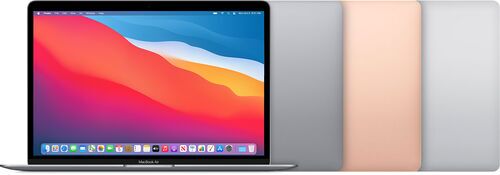
Apple silicon MacBooks offer another set of choices. An M1 MacBook Air with 8 GB is a quiet starting point for editing selected photos and simple video, though its base storage is small. The 16 GB version is more comfortable, but the memory is fixed and cannot be upgraded in either version. An M1 Pro MacBook Pro with 16 GB adds media engines for H.264, HEVC, ProRes and ProRes RAW, plus more ports and active cooling. Large projects can still stretch its 16 GB of memory. When comparing a MacBook with a later chip, look at its chip, memory and cooling together rather than just the number in the chip's name. Our guide to MacBook Air chips compares four recent chips.
A business laptop paired with a good monitor makes a capable desk setup for photo work, while a refurbished MacBook Pro with Apple silicon balances mobility and video capability. Browse refurbished laptops and refurbished MacBooks with those starting points in mind.
Choosing a refurbished laptop: what to look at
A refurbished laptop has been professionally tested, cleaned and reconditioned until it is hard to tell apart from new. Every refurbed purchase comes with a minimum 12-month warranty and a 30-day return window. Any laptop is worth checking, and the return window gives you time to do it.
Check its condition before you test its speed:
- Power and battery: Check that the laptop boots and charges with a suitable charger, and look at the battery's condition in the system's own diagnostics. The percentage of charge remaining does not tell you the battery's health, so run it unplugged for a while too.
- Screen: Check that the screen is undamaged and evenly lit, and confirm its specifications.
- Memory and drive: Check that both match the listing, that the drive reports that it is healthy, and that it has free space.
- Ports: Check that the card reader, external drive and display connection your workflow uses all work.
- Cooling: Check that the fans sound normal and that the laptop finishes a long task without errors or shutting down.
Then test on your own files. For photos, import a copy of a small batch of photos from a real shoot, cull them, apply a few masks, then export and reopen the result. For video, play an original clip and skip back and forth through it, play the timeline you intend to use, make proxies, switch on the effects you use, export from the original media and watch the result.
A grade describes how a laptop looks, not how it behaves through a long edit, so the test tells you what the grade cannot. For more on choosing a laptop, see our laptop buying guide.
What a longer-lived laptop saves
A laptop that keeps doing its job for longer can mean one fewer new laptop gets made. Where a model allows it, more memory or a larger drive can keep a laptop going, and a refurbished laptop gives a machine that already exists another life. For many kinds of editing, only a few parts determine whether a laptop can do the job, and you can check each during the return window.
Each refurbished laptop sold on refurbed carries verified environmental savings compared to buying new. Based on scientific research by Fraunhofer Austria (ISO 14040/14044 verified):
↓ Lenovo ThinkPad T480 | i5-8350U | 14" (240 GB): SAVED 376 kg CO₂e | 95,781.8 L water | 1691.4 g e-waste
↓ Apple MacBook Air 2020 | 13.3" | M1 (128 GB): SAVED 298 kg CO₂e | 75,783.2 L water | 1375.2 g e-waste
↓ Apple MacBook Pro 2021 M1 | 14.2" (512 GB): SAVED 380.1 kg CO₂e | 96,456.6 L water | 1674.2 g e-waste
These three laptops are examples: each line uses the model's smallest storage size, and every other model has its own figures.
Frequently asked questions about laptops for photo and video editing
Can I edit 4K video on a laptop with 8 GB of RAM?
Yes, for modest projects with footage your editing software supports, especially with proxies, though that much memory leaves little room for effects, several applications or current software. DaVinci Resolve lists 16 GB as its published memory baseline for Windows, and it requires more than 8 GB for Fusion on a Mac.
Do I need a dedicated graphics card for photo editing?
No, not for ordinary work: integrated graphics that your editing software supports can handle corrections, cut-outs and simple image-editing projects. AI tools that run on the laptop and heavier processing can make a capable graphics chip much more valuable. The exact chip and its graphics memory matter more than whether it is 'dedicated' or 'integrated'.
Is 32 GB of RAM always faster than 16 GB for editing?
No. 32 GB gives you more working room, but you notice the difference only if a job would otherwise run short of memory. More memory does not speed up a video decoder, a network service or a calculation that already fits in memory.
Is an older workstation laptop better than a newer business laptop for editing?
Not automatically. An older workstation laptop may offer more graphics power, better cooling and more ports. But it may also have an old graphics chip with little memory, a battery that performs poorly or software that current applications no longer support. Compare each laptop's full specifications and condition.
Does a smooth proxy timeline mean my final video will be lower quality?
No. A proxy is only the working copy. Reconnect the original clips, check that the setting to use proxies for export is off, and export from the originals. Then play the exported file to check its quality, sync and effects.
Can an external SSD fix a slow laptop?
Only some problems. An external SSD gives you more storage and can speed up some media transfers, but it cannot add memory, graphics memory, software support or a video decoder. If it holds the only copy of your originals, it is not a backup either.
Will a refurbished MacBook with an M1 Pro chip stay supported for a set number of years?
There is no announced end date, so nobody can promise a set number of years of support. Check that the applications and macOS version you need run on the laptop today, then judge it by what it can do now and its condition.
Can I upgrade the memory in a refurbished laptop?
It depends on the model. Some laptops have replaceable memory, some mix soldered memory with a slot, and some cannot be upgraded at all, so check the service documentation for the exact model, or choose a refurbished laptop with the memory you need from the start. Apple silicon Macs set their memory at purchase.
Find the laptop that fits the way you edit
You now know what each laptop component does during an edit, so you can match a laptop to the way you work and test it on your own files.
refurbed is a marketplace that brings sellers of refurbished electronics together with people who would rather not buy new, and it won Austria's overall EY Scale-up of the Year 2023.
Every purchase has warranty cover of at least 12 months and a 30-day return window. Browse refurbished laptops and pick the one that fits the way you edit.


Sign up for our newsletter for the first time and save €15!
Never miss an offer again.
Information about the use of personal data can be found in our Privacy policy.
Get the refurbed app
For iOS and Android



Confirm sign-up
Almost done: We’ve sent you a confirmation email
- © Refurbed Marketplace GmbH
- Accessibility
- T&C
- Privacy Policy
- Imprint
- Legal Notices
- European Data Act
- Cookie Policy